

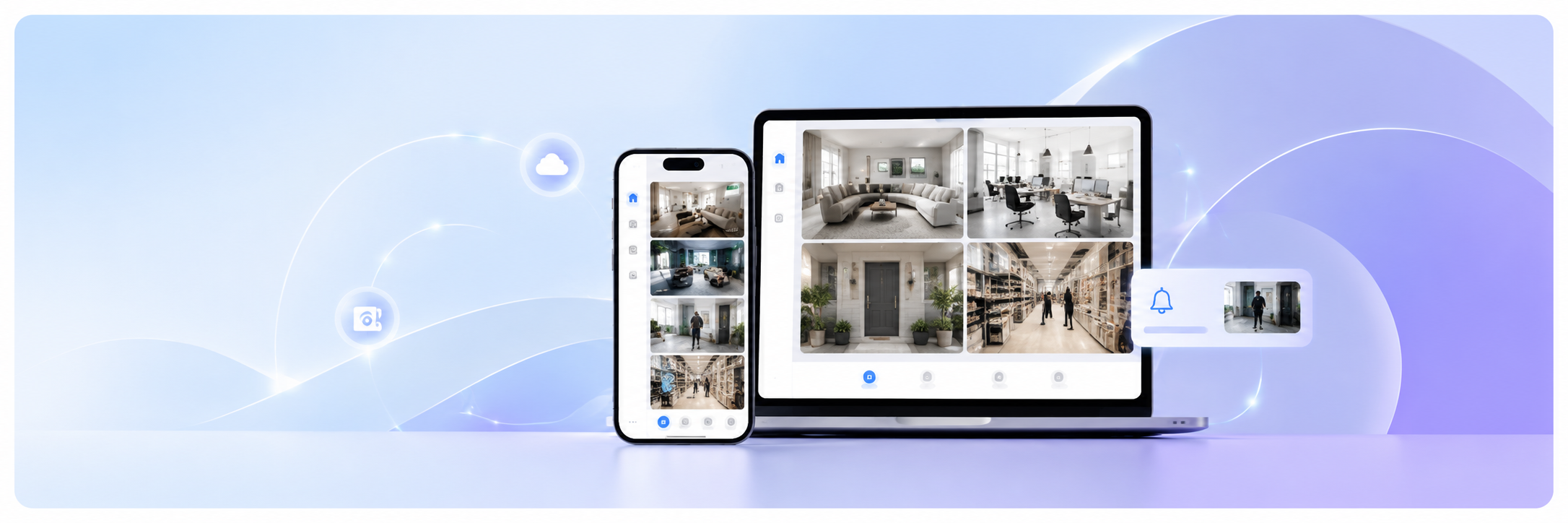
Staying informed about what happens at your home or business no longer requires expensive hardware or a professional installer. A remote monitoring app turns any device you already own into a fully functional security camera — and connects it to your phone in seconds.
Visory does exactly that. It transforms phones, tablets, and laptops into live-streaming cameras with motion detection and night vision, and connects everything through a simple QR code scan. No extra equipment, no complex wiring, no lengthy setup.
What Is a Remote Monitoring App?
A remote monitoring app lets you view and manage cameras from any location using a smartphone, tablet, or computer. The camera device streams live video, and your viewing device receives that feed over Wi-Fi or mobile data.
Modern remote monitoring technology goes beyond basic streaming — it handles connected devices monitoring across multiple locations, sends instant motion alerts, and gives you full visibility from a single interface. What makes Visory camera particularly accessible is that you can use devices you already own: an old smartphone, a spare tablet, or a laptop — no dedicated hardware required.
Benefits of Remote Video Surveillance and Phone-Based Monitoring
The shift to app-based monitoring has made professional-grade surveillance available to anyone. Remote video surveillance gives you continuous visibility without physical presence — check on a property during a business trip, verify contractors are on-site, or confirm a delivery arrived safely, all from your phone.
Key advantages of phone-based monitoring:
- Portability — reposition a smartphone camera in seconds, unlike a wall-mounted unit
- Night vision — Visory camera app captures clear footage even in low-light conditions
- Instant alerts — motion is detected and reported in real time, not after the fact
- Cost efficiency — existing devices replace the need for dedicated hardware
Connected devices monitoring is also far simpler when everything runs through one platform. Multiple cameras across different locations appear in a unified view, with no separate logins or apps to juggle.
Where to Use a Video Surveillance App: Home, Office and Business
Remote monitoring technology fits a wide range of situations. The same app that watches your front door can secure a warehouse or retail floor — what changes is the configuration, not the tool.
| Use case | Primary benefit | Typical camera placement |
|---|---|---|
| Home security | Intrusion detection and alerts | Entrances, garage, backyard |
| Office | Access control, after-hours monitoring | Reception, hallways, server rooms |
| Retail | Loss prevention, staff oversight | Sales floor, checkout, storage |
| Rental property | Remote check-ins, damage documentation | Common areas, entrances |
| Warehouse / site | Safety compliance, theft prevention | Loading docks, perimeter |
For remote or hard-to-reach locations — a seasonal cabin, a rural property, a temporary job site — any phone or laptop with a data connection becomes a working surveillance node instantly.
How to Set Up Remote Camera Access from Your Phone
The Visory camera app is available on the App Store, Google Play, and as a Web App at app.visory.cam. Setup takes under ten minutes.
Step 1. Install or open Visory on both devices — the camera and the viewer can be any combination of iOS, Android, or a browser-based device.
Step 2. On the camera device, select camera mode and adjust the field of view and motion detection sensitivity.
Step 3. On a mobile viewer, scan the QR code shown on the camera device. For laptops and desktops, send a link to the device, open it, confirm, and monitoring begins.
Step 4 (optional). To add a physical IP camera, select “Connect IP camera” in the app and follow the instructions. Visory supports all ONVIF-compatible cameras.
Key Features of Our Video Monitoring Platform
Live HD streaming — smooth, high-definition video with quality that adjusts automatically to available bandwidth, so the feed stays stable even on slower connections.
Motion detection and alerts — continuous monitoring with instant push notifications. Each event is timestamped so you can jump straight to what triggered the alert.
Night vision — clear footage in low-light conditions around the clock, with no additional hardware needed.
Multi-platform support — iOS, Android, and web browsers on laptops and desktops are all fully supported. Camera and viewer devices can be mixed freely across operating systems.
ONVIF IP camera integration — existing physical security cameras connect directly to the same interface as your phone and laptop cameras.
QR code pairing — connecting devices takes seconds, with no manual network configuration required.
Coming soon: stranger detection, vehicle detection, baby cry detection, pet sound detection, glass break detection, and fire alarm detection — all delivered as app updates, no hardware changes needed.
Why Choose Visory Remote Camera Monitoring App?
Visory camera app works across all major platforms — iOS, Android, and web — so you’re not locked into a specific device ecosystem. It activates hardware you already own, keeping costs low from day one. Setup via QR code or link takes seconds, not hours. The interface is straightforward enough for first-time users while offering the controls that experienced users expect.
To get started, you need to purchase a subscription to the app; there are no hidden fees, and you can cancel at any time. The annual plan gives you access to professional-grade remote monitoring services at a price that’s hard to beat.
FAQ
What devices work with Visory?
iOS and Android phones and tablets, laptops and desktops via the Web App, and ONVIF-compatible IP cameras. Camera and viewer devices can be mixed across platforms.
Does the source device screen need to stay on while streaming?
No. Visory runs in the background on the source device, so the screen can remain off while live streaming and motion detection continue without interruption. This is particularly useful for unattended deployments where the device is left in place for extended periods.
Do I need to create a separate account for each camera device?
No. Multiple source devices are managed through a single Visory account. All connected devices appear in the same viewing interface, so there’s no need to log in and out of separate accounts when switching between feeds.
What happens to motion alerts when I’m not connected to the internet?
Alerts are delivered to your viewing device over whatever internet connection is available — Wi-Fi or mobile data. If your viewing device temporarily loses connection, notifications will be delivered once the connection is restored.
Does it work over mobile data?
Yes. Visory streams over Wi-Fi and 4G/5G mobile data. Quality scales to available bandwidth automatically.
How many cameras can I connect?
Multiple simultaneous connections are supported. The practical limit depends on your device’s processing power and internet speed.
Can I connect existing physical cameras?
Yes, if they are ONVIF-compatible. Connect the camera to your network, select “Connect IP camera” in Visory, and follow the in-app steps.