

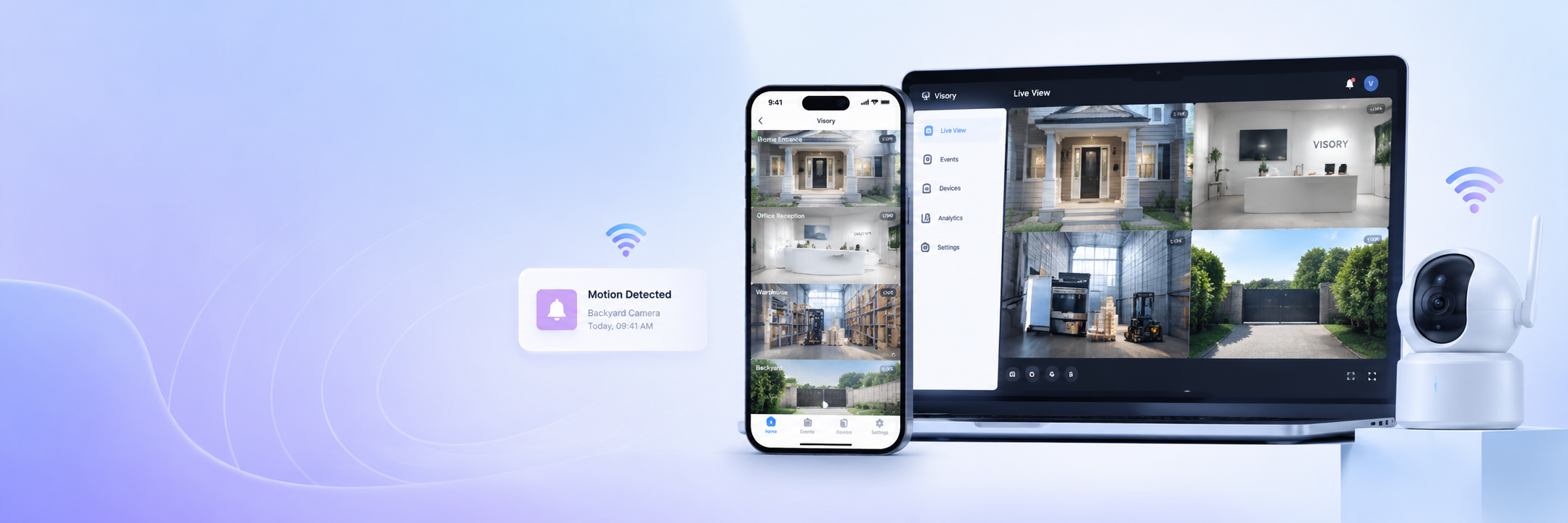
Managing security cameras across different locations used to mean investing in specialized hardware and professional installation. Today, a single app handles everything — connecting IP devices, smartphones, and laptops into one unified monitoring system. Visory is that app: a cross-platform solution that brings your entire surveillance network under one roof, regardless of what devices you’re working with.
What Is an IP camera app and WiFi camera app?
An IP camera app is software that connects to network-based devices and streams their footage to a phone, tablet, or computer. A WiFi camera app does the same over a wireless connection, eliminating the need for cabling between the source and the viewer. In practice, both terms describe the same category of tool — ip camera software that lets you monitor any connected device remotely.
What separates a basic viewer from a fully capable solution is the range of devices it supports and how easily it brings them together. The Visory camera app functions as both a wifi camera app and an ip camera app in one interface: it connects ONVIF-compatible physical IP cameras, iOS and Android smartphones acting as capture devices, and laptops or desktops — all accessible from the same screen.
Benefits of using a smart security camera app
Switching from a standalone CCTV recorder to app-based ip camera software changes how monitoring actually works day to day. The most immediate shift is accessibility — your cameras are no longer tied to a screen in a specific room. A smart wifi cam or IP camera connected through Visory is viewable from anywhere with an internet connection.
The practical advantages go further than remote access:
- Unified control — all feeds, regardless of type or location, appear in one interface
- Motion detection — the app identifies movement and sends instant alerts, so you’re notified without watching feeds continuously
- Night vision — Visory delivers clear footage in low-light conditions without additional hardware
- No specialist setup — connecting a new device takes seconds, not hours; no technician needed
For anyone managing more than one location or camera type, having everything under a single smart cctv platform removes the friction of switching between systems and tracking separate logins.
Where to use a CCTV camera app: home, office and outdoor monitoring
The same cctv camera app covers fundamentally different environments without any configuration changes between them. What works for a home entrance works equally well for a warehouse loading dock or an office reception area.
| Environment | Typical use | Device type |
|---|---|---|
| Home | Entrance and backyard monitoring | Smartphone or IP camera |
| Apartment | Door and hallway surveillance | Smartphone, tablet |
| Office | Access control, after-hours security | IP camera, laptop |
| Retail | Floor coverage, loss prevention | ONVIF IP camera |
| Warehouse | Perimeter and dock monitoring | IP camera |
| Outdoor / remote | Property and site coverage | ONVIF IP camera |
For remote or hard-to-reach locations, Visory is particularly practical. Any ONVIF-compatible IP camera connected to a WiFi or wired network becomes a live feed accessible from your phone — no on-site monitor required.
How to connect IP and WiFi cameras in one app
Visory camera app supports three distinct connection methods depending on the device type. All three result in the same outcome: a live feed in your monitoring interface.
Smartphones and tablets (iOS and Android): open the QR code in Visory on the source device, then scan it from the viewing device. The connection is live within seconds — no credentials to type, no network settings to configure.
Laptops and desktops: send a link from the app to the device you want to use as a capture device. Open the link on that device, confirm, and monitoring starts. The Web App at app.visory.cam handles this without requiring any installation on the laptop side.
ONVIF-compatible IP cameras: connect the unit to your network, then select “Connect IP camera” in Visory and follow the in-app instructions. This integrates fixed security installations, outdoor units, dedicated WiFi units directly into the same interface used for phones and laptops.
Connected camera network and smart CCTV control
One of the more significant advantages of using Visory camera as ip camera software is how it handles multiple feeds simultaneously. Rather than managing each device separately, you work with a connected camera network where every feed is accessible from one place.
This matters most when devices are spread across different physical locations. A retail owner monitoring two shops, a property manager watching several units, or a business with separate office and warehouse sites — all of these benefit from a single dashboard that removes the need to switch between apps, accounts, or systems. The security camera connect process is the same for every device type, so adding a new camera to the network takes the same few seconds whether it’s a spare phone or an ONVIF IP camera already installed on a wall. Smart CCTV control, in this sense, means spending less time on administration and more time actually seeing what’s happening.
Key features of Visory app controlled security camera solution
Visory covers the core functions users rely on daily, without unnecessary complexity.
Live HD streaming adapts to available bandwidth, maintaining a stable feed even when connection speed fluctuates. Motion detection runs continuously and sends push notifications the moment activity is detected, with each event timestamped for easy review. Night vision ensures coverage holds up in low-light conditions around the clock. QR code and link-based pairing keeps the security camera connect process fast and repeatable — no technical knowledge required.
Looking ahead, Visory is actively developing a set of intelligent detection features: stranger detection, vehicle detection, baby cry detection, pet sound detection, glass break detection, and fire alarm detection. These will be delivered as app updates and will require no hardware changes.
Why choose Visory app for IP and WiFi cameras?
Visory brings together device types that usually require separate apps — IP cameras, smartphones, tablets, and laptops — into one wifi cam app that works across iOS, Android, and web browsers. The setup is fast by design: QR code pairing for mobile devices and link-based connection for computers mean you’re monitoring within minutes, not hours.
For anyone who needs a reliable, cross-platform cctv camera app without committing to expensive hardware or long-term contracts, Visory covers the full range — from a single smart wifi cam at home to a connected camera network across multiple business locations.
FAQ
Which IP cameras are compatible with Visory?
Visory supports all ONVIF-compatible IP cameras. Connect the unit to your network, select “Connect IP camera” in the app, and follow the in-app steps.
Is this a Wi-Fi camera app for both iOS and Android?
Yes. Visory camera app is available on the App Store, Google Play, and as a Web App at app.visory.cam. Source and viewer devices can be any combination of iOS, Android, or browser-based devices.
How many cameras can I manage at once?
Visory supports multiple simultaneous connections. The practical limit depends on the processing capability of your viewing device and the speed of your internet connection.
Does the app work over mobile data as well as Wi-Fi?
Yes. Visory streams over any available connection, including 4G and 5G mobile data. Stream quality adjusts automatically to the available bandwidth.
Can I use a laptop as a camera source, not just as a viewer?
Yes. Laptops and desktops can act as either the source or the viewing device in Visory. To connect a laptop as a source, send a link from the app to the device, open it in a browser, confirm, and streaming begins. No installation is required on the laptop side.
What is the difference between QR code pairing and link-based connection?
QR code pairing is used for mobile devices — open the code in Visory on the source device and scan it from the viewing device. Link-based connection is designed for laptops and desktops, where scanning a QR code isn’t practical. Both methods result in the same instant connection with no manual network configuration.